

The First Step: Get a Google Analytics Account
This is quite simple. Do you have a Google Analytics account yet? If the answer is no, it’s about time you get one. If you already have an account, let’s move forward.
The Second Step: Enable Tracking in Google Analytics
Next comes enabling tracking in Google Analytics. You need to turn on the button meant for e-commerce tracking with these steps:
• Sign into your Google Analytics account.
• Choose the desired account.
• Go to the “Admin” tab from the top navigation.

• In the third column from left, choose “e-commerce” setting.
• Turn the “Enable e-commerce” toggle switch to “On.”
• Turn the “Enable e-commerce” toggle switch to “On.”
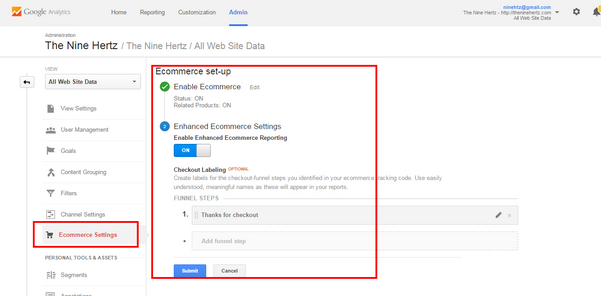
This is optional, but you could also set the “Enable Related Products” toggle to “On.” Click on the “Next Step” It will ask for “Enhanced E-Commerce Settings.” If you want to enable it, then toggle the switch to “On” or else click “Submit.”
The Third Step: Add Tracking Codes
Now, it’s time to add the tracking codes onto your website’s receipt page. Here is the Asynchronous Syntaxrecommended code by Google:
<html>
<head>
<title>Receipt of your purchase from Shoe Shop</title>
<script type=“text/javascript“>
var _gaq = _gaq || [];
_gaq.push([‘_setAccount‘, ‘UA-XXXXX-X’]);
‘9536‘, // transaction ID – required
‘ Shoe Shop’, // affiliation or store name
‘56.23‘, // total – required
‘2.56‘, // tax
‘3‘, // shipping
‘Las Angeles‘, // city
‘California’, // state or province
‘USA’ // country
]);
// add item might be called for every item in the shopping cart
// where your ecommerce engine loops through each item in the cart and
// prints out _addItem for each
‘9536‘, // transaction ID – required
‘DD44’, // SKU/code – required
‘Nike Shoe‘, // product name
‘Sport Medium’, // category or variation
‘56.23‘, // unit price – required
‘1’ // quantity – required
]);
(function() {
var ga = document.createElement(‘script’); ga.type = ‘text/javascript‘; ga.async = true;
ga.src = (‘https:’ == document.location.protocol ? ‘https://ssl’ : ‘http://www’) + ‘.google-analytics.com/ga.js’;
var s = document.getElementsByTagName(‘script’)[0]; s.parentNode.insertBefore(ga, s);
})();
</script>
</head>
<body>
Thank you for your order. You will shortly receive an email containing all your order details.
</body>
</html>
Note 1: It’s necessary to add the codes in the receipt page only using all required fields.
Note 2: Make sure that website visitors aren’t able to access the receipt page directly without making a purchase. Failing at this will skew your e-commerce stats.
Note 2: Make sure that website visitors aren’t able to access the receipt page directly without making a purchase. Failing at this will skew your e-commerce stats.
The tracking process starts with the initialization of transaction objects by using method _addTrans() in the script. The main goal of the transaction object is to store data related to the transaction. This can include facts like billing address, charges for shipping, and transaction ID.
Syntax: _addTrans(orderID, store name, total revenue, tax, shipping, city, state, country)
Syntax: _addTrans(orderID, store name, total revenue, tax, shipping, city, state, country)
Here’s an example:

Note: All items purchased during this transaction must have the same ID.
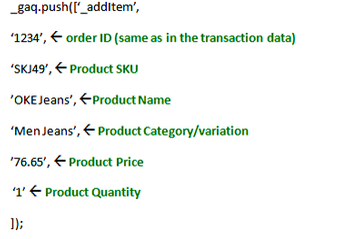
Next, you’ll need to add items to the transaction. This is achieved by utilizing the _addItem() method. Remember that the information collected so far is limited to the transaction and won’t include individual items. Therefore, this step is focused on gathering product information, such as stock keeping unit (SKU), total quantity, price, and item category._addItem() is utilized to store data about the product purchased in the visitor’s transaction.
Next, you’ll need to add items to the transaction. This is achieved by utilizing the _addItem() method. Remember that the information collected so far is limited to the transaction and won’t include individual items. Therefore, this step is focused on gathering product information, such as stock keeping unit (SKU), total quantity, price, and item category.
Continue Reading
Recommended articles you might enjoy
Hire SEO Consultant for Startups & Law Firms in Manzanillo
World Web Solutions — Local SEO Experts Hire SEO Consultation for YourStartups & Law Firm in Manzanillo Grow your startup…
Read Article →Hire SEO Consultant for Startups & Law Firms in Lázaro Cárdenas
World Web Solutions — Local SEO Experts Hire SEO Consultation for YourStartups & Law Firm in Lázaro Cárdenas Grow your…
Read Article →Syntax: _addItem(orderID, Product-SKU, Product-Name, Product-Category, Product-Price, Quantity)
Here’s an example:
Here’s an example:
All that’s left now is to submit the data collected into the Google Analytics Server. This is accomplished through the _trackTrans() method. _trackTrans() occurs only once the transaction is actually completed. Of course, interpretation of the transaction tracking data will depend on the engine that you choose. Good ones will significantly simplify the data before presenting it to you. Rest assured that almost all e-commerce engines recognize and accept Google Analytics data though.
Here’s how the _trackTrans() method works:
_trackTrans() is utilized to send e-commerce tracking data to Google Analytics via an invisible _utm.gif file. The file is requested in two instances:
1. Each visitor’s transaction
2. Each unique product
Syntax: _gaq.push([‘_trackTrans’]);
Note 1: The _trackTrans() method should always be called after the following methods: _trackPageView(), _addTrans(), and _addItem() methods.
Note 2: The use of _trackPageView() will associate the purchase with the page titled something like “Receipt ofyour purchase – Shoe Shop”
Here’s how the _trackTrans() method works:
_trackTrans() is utilized to send e-commerce tracking data to Google Analytics via an invisible _utm.gif file. The file is requested in two instances:
1. Each visitor’s transaction
2. Each unique product
Syntax: _gaq.push([‘_trackTrans’]);
Note 1: The _trackTrans() method should always be called after the following methods: _trackPageView(), _addTrans(), and _addItem() methods.
Note 2: The use of _trackPageView() will associate the purchase with the page titled something like “Receipt ofyour purchase – Shoe Shop”
Note 3: The _gaq is a global object that can be used directly for an asynchronous page tracking with the push (…) method.
Collecting Meaningful Analytics Data
Google Analytics has the power to steer your business in the right direction if it’s veering towards the wrong path. Yet, you’ll need data that’s meaningful without any room for ambiguity to ensure this holds true. Keep in mind that Analytics will churn out only data that’s supplied to it. Don’t forget the following handy tactics.
- The argument list for both _addItem() and _addTrans() is correspondent to position. Certainly, you don’t need all of the arguments, but supplying empty placeholders for arguments that aren’t specified is vital. This will prevent calculation errors. For instance, you could add an item that contains quantity, place, SKU, and transaction ID in this manner: _addItem(“9856”, “684”, “”, “”, “95.61”, “1”);
- SKU codes are a must for every item in the transaction. When the SKU isn’t provided for all items, then GIF request would only be requested for the last product containing a SKU. Also, if the same SKU is assigned to multiple products, the e-commerce tracking data would only be available for the one added most recently. Your analytics will be skewed in both cases because all transaction purchases wouldn’t be accounted for.
- Currency conversions ought to be handled before sending the data to the Google Analytics server. The “Price” and “Total” parameters don’t follow any currency formatting. Without currency formatting, the parameters consider the period (.) and comma (,) as fractional value. Unless handled by your eCommerce platform’s software, the e-commerce tracking data sent to Analytics will consider 44,550 dollars as $44.55 which will end up by supplying very wrong input.
Subscribe to the blog to know more about the digital marketing tips. Follow our Blog to Get update from the SEO Expert in Indore. We are the best online marketing company in indore & India
Source :semrush
